How to Build a Redirect Map for a Website Migration (301s, Step by Step)

Adrian KuleszoCo-founder
Table of contents
A redirect map is a list of every URL your old site ever answered, with what happens to each one on the new site. It’s the single document that decides whether a migration keeps its rankings, because broken URLs are the most common reason migrations lose traffic.
We just built one for our own move from Framer to Astro: 116 rows, of which 65 keep their path, 43 get a 301 and 8 are retired. Here’s the method, step by step, with the template and the host settings that catch teams out.
- 116 rows in our own redirect map
- 65 keep their path
- 43 get a 301
- 8 retired
What goes in the map
Use a spreadsheet or a CSV with one row per old URL. These are the columns we use:
| from | to | status | code | source | notes |
|---|---|---|---|---|---|
| /pricing | /pricing | same | 200 | live | In sitemap |
| /plans | /pricing | 301 | 301 | wayback | Old pricing page, has backlinks |
| /blog/launch-week | /insights/launch-week | 301 | 301 | search-console | 40 clicks a month |
| /coaching | gone | 404 | live | No equivalent, no links |
from is the old path. to is the new path, or empty. status is the decision: same, 301 or gone. code is the HTTP status you expect when you test it. source says where you found the URL, which tells you how much it matters. notes records why, so nobody has to guess six months later.
Step 1: collect every old URL
No single source has every URL, so combine them.
- A crawl of the live site. Screaming Frog’s free version crawls up to 500 URLs, which covers most startup sites.
- The XML sitemap. Compare it with the crawl. Ours was missing a page that the navigation linked to.
- Google Search Console. Export the pages with impressions and clicks, and check the Links report for pages other sites link to.
- Analytics. Landing pages from the last 12 months, including ones that only get traffic from ads or email.
- Links you control. Ad campaigns, email sequences, decks, QR codes on packaging or trade show material, and partner listings. A hardware or DTC company often has printed URLs that nobody remembers.
- The Wayback Machine. Its CDX API lists every URL it has archived for your domain, including pages you deleted years ago that still have backlinks.
Normalise everything to paths, remove duplicates, and keep the source column. On our site this turned 63 live URLs into 116 rows, because old pages, hidden pages and short links from old articles all turned up.
Step 2: decide what happens to each URL
Every row gets one of three outcomes.
Same. The path doesn’t change. This is the best outcome, so keep URLs wherever you can, including odd slugs and the old trailing-slash rule. We even kept slugs with dots in them. Changing a URL for neatness is the easiest way to lose rankings.
301. The page moves or is merged into another page. It gets a permanent redirect to its new URL.
Gone. The page has no equivalent and no value. It returns a 404, or a 410 if you want to say it was removed on purpose.
Mark the URLs that rank, convert or have backlinks first. They get the most careful handling.
Step 3: pick the right target
Send each URL to the page that answers the same question. An old pricing page goes to the new pricing page, an old feature page to the product page that now covers it, an old blog post to its new address.
Don’t send retired pages to the homepage. Google says that redirecting many old URLs to one irrelevant destination, such as the home page, can be treated as a soft 404. If nothing on the new site is relevant, a 404 is the honest answer.
Make every redirect a single hop to the final URL. Googlebot follows up to 10 redirects in a chain, but Google advises pointing straight at the final destination, and so do we. If you migrated before, update the old redirects to point at the new final URLs too.
Step 4: use patterns carefully
When hundreds of URLs follow the same pattern, one rule can cover them. Framer supports wildcards and slug parameters, Cloudflare and Netlify support splats and placeholders, and Vercel supports path parameters. For example, on Cloudflare Pages:
/blog/* /insights/:splat 301Patterns save time and cause the worst mistakes. A wildcard that matches more than you meant can send whole sections to one page. Write the specific rules first, test the pattern against every URL in the map, and watch your host’s limits. Cloudflare Pages allows 2,000 static and 100 dynamic redirects, and Vercel allows about 2,048 routes in its config, with a separate bulk redirects feature for large lists.
Step 5: add the host rules
Some redirects apply to every URL and belong at the host, not in the map. Check what your old site does today and copy it:
- Apex and www. Pick one and redirect the other, keeping the path and query string.
- HTTP to HTTPS. Permanent redirect on both hostnames.
- Trailing slashes. One rule across the site. Framer serves URLs without a trailing slash, for example, so the new site has to match or every URL quietly changes.
- File extensions.
/about.htmlshould redirect to/aboutor return a 404, never serve a duplicate page. - Query strings. Keep them when a redirect fires, so UTM tags survive.
Then set a canonical URL on every page that points at its own final address.
Step 6: write the rules in your host’s format
Each host has its own format and its own defaults, and the defaults are where migrations go wrong.
| Host | Where redirects live | Default and gotchas |
|---|---|---|
| Cloudflare Pages | A _redirects file |
302 when you don’t write a status code, so write 301 on every line |
| Netlify | The same _redirects format |
Defaults to 301 |
| Vercel | vercel.json or the framework config |
permanent: true sends a 308, which Google treats the same as a 301 |
| Astro (static build) | Redirects in its config | Turned into HTML pages with an instant meta refresh |
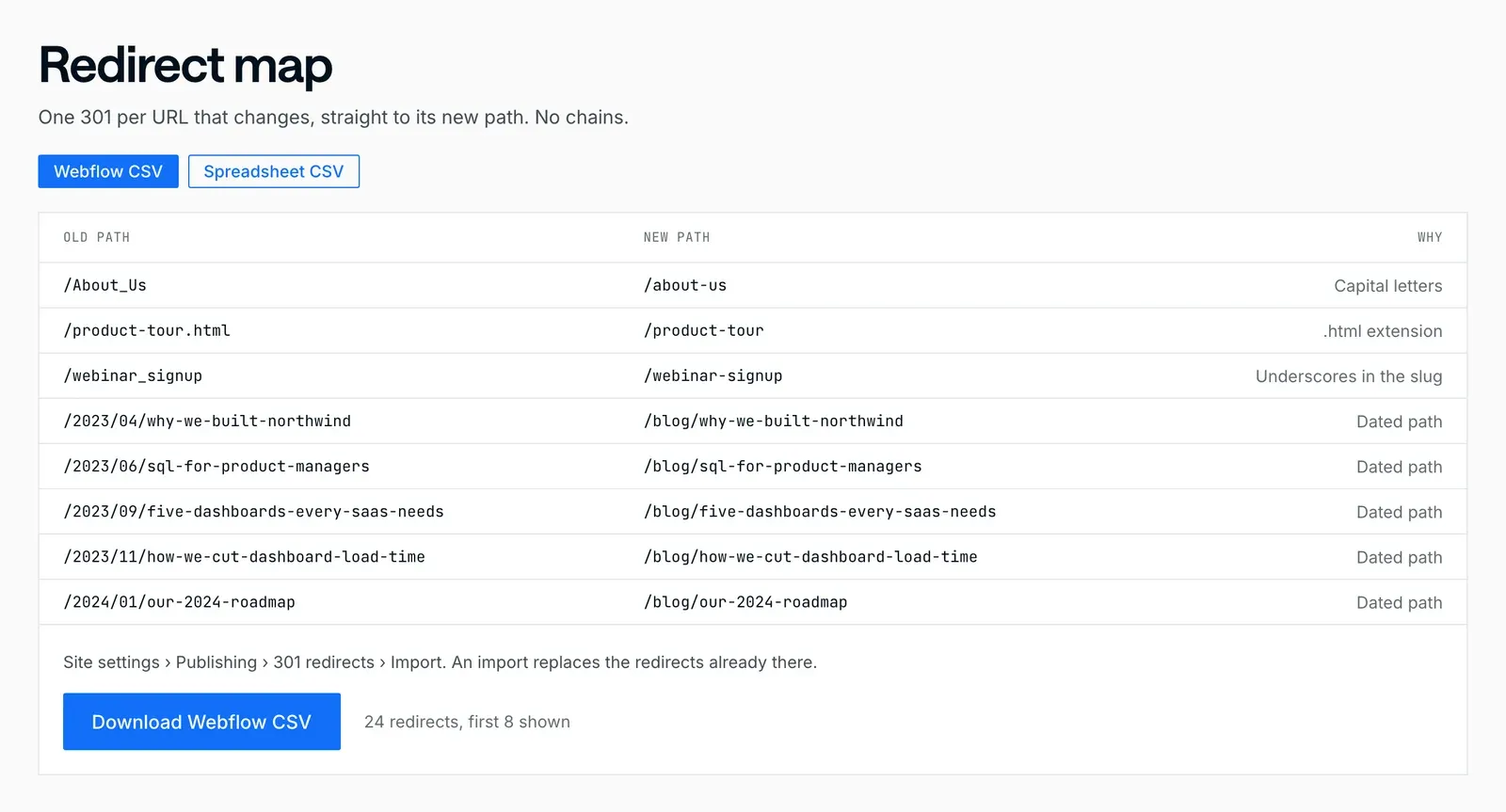
| Webflow and Framer | Site settings | Webflow can import and export them as a CSV |
Google reads Astro’s meta refresh pages as permanent, but a real server redirect is cleaner, so put them in the host’s file or use an adapter that writes it for you.
Google treats 301 and 308 as permanent and 302 and 307 as temporary. Only permanent redirects tell Google the new URL should be indexed in place of the old one.
Step 7: test before and after launch
Before launch, test every row against the staging site. A quick check from the terminal shows the status code and the destination:
curl -sI https://staging.example.com/plans | grep -i -E "^HTTP|^location"Run the full list through a crawler in list mode as well, and check three things for every row: the status code matches the map, the destination returns 200, and there’s no chain.
Update internal links in navigation, footers and old posts to the new URLs, so crawlers and visitors don’t walk through redirects. Submit the new sitemap on launch day.
After launch, watch Search Console and your analytics daily for the first weeks. Google says a small or medium site can take a few weeks for most pages to move, and some ranking movement in that time is normal. A decline that keeps going usually means a redirect gap. It happened on one of our own earlier relaunches, and a clean 301 map fixed it, which we wrote up in our WordPress migration guide.
Step 8: keep the redirects
Google advises keeping redirects for as long as possible, generally at least a year. Old links in emails, decks and other sites keep arriving for much longer, so we keep them in place for good. Keep the map in the repository or a shared drive, and add a row every time a URL changes.
Plan your own
Our free migration planner does the first pass for you: enter your site and where it’s moving, and it lists every URL in your sitemap, shows which keep their path and builds a redirect map file your new platform can import. Add the other sources from step 1 before you trust it. Each path on our migrations page, such as Framer to Astro or WordPress to Webflow, covers what moves cleanly and what has to be rebuilt. For the full launch sequence, see the redesign and migration checklist. If you’d rather hand it over, redirects, metadata and structured data are part of our SEO and AEO work.
DesignMe migrates websites for funded startups and B2B companies with the redirect map built before the new site, because keeping the traffic the old site earned is the point. If you’re planning a move, send us your site and we’ll reply within one business day, or book a 30-minute call with Adrian:
Sources
- Google Search Central, "Site moves with URL changes" (accessed 10 October 2026) (opens in a new tab)developers.google.com
- Google Search Central, "Redirects and Google Search" (accessed 10 October 2026) (opens in a new tab)developers.google.com
- Cloudflare Pages docs, Redirects (accessed 10 October 2026) (opens in a new tab)developers.cloudflare.com
- Netlify docs, Redirects and rewrites (accessed 10 October 2026) (opens in a new tab)docs.netlify.com
- Vercel docs, Redirects (updated 18 September 2026) (opens in a new tab)vercel.com
- Astro docs, Routing: configured redirects (accessed 10 October 2026) (opens in a new tab)docs.astro.build
- Framer, "Set up redirects" (accessed 10 October 2026) (opens in a new tab)framer.com
- Webflow, "Import and export 301 redirects" (accessed 10 October 2026) (opens in a new tab)help.webflow.com
- Screaming Frog, SEO Spider (accessed 10 October 2026) (opens in a new tab)screamingfrog.co.uk
- Internet Archive, Wayback CDX Server API (accessed 10 October 2026) (opens in a new tab)github.com
Press Escape to close.